

Create Manual Shipment
You can create shipment orders manually from the panel, without using APIs or external sources.
Create Shipment Manually
Individual Merchants can manually create shipment orders directly from the Muvx Merchant Panel, without needing API integration.
If a delivery provider invites you as an Individual Merchant:
- If you don’t have a Muvx account, one will be created for you.
- If you already have a Muvx account, a new Individual Merchant company will be linked to your user.
Once invited, you can access the panel and start creating shipments manually.
Accessing Manual Order
To start creating a shipment:
- Navigate to the Shipment page from the sidebar.
- Click the Create Shipment Request button at the top-right corner.
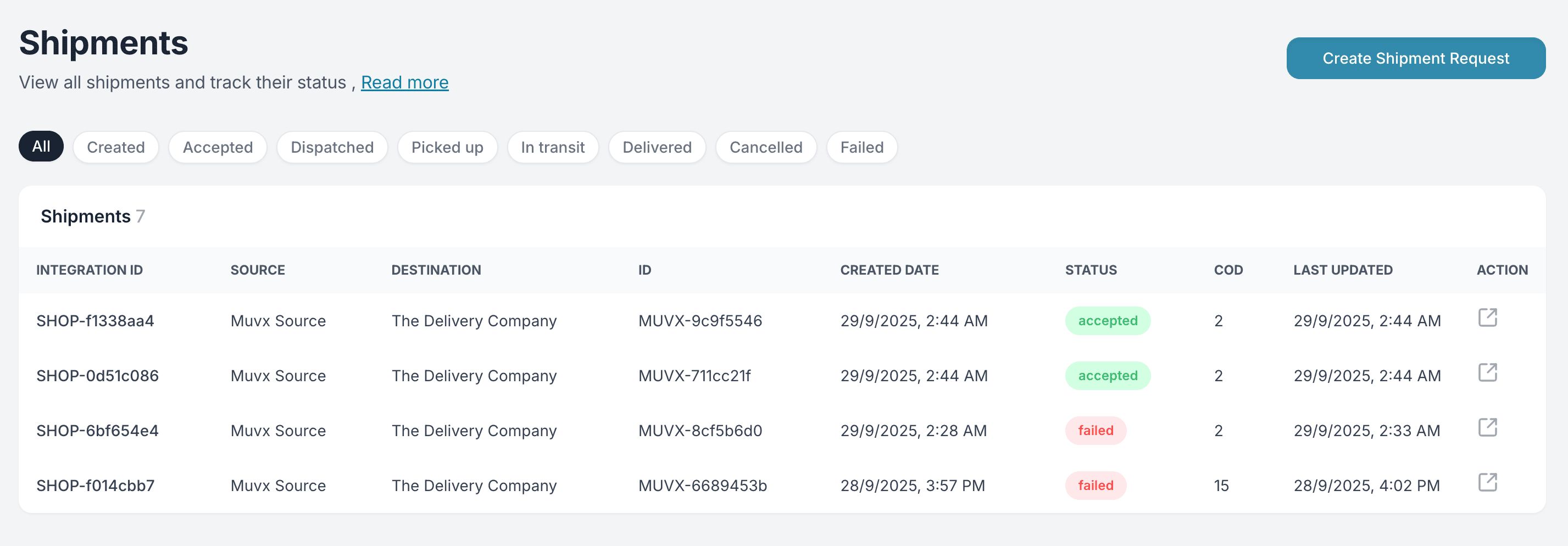
You will be guided through a 5-step process to complete the order.
Step 1 — Customer
Fill in the recipient’s contact details:
- Customer Name (required)
- Phone Number (required)
- Email Address (optional)
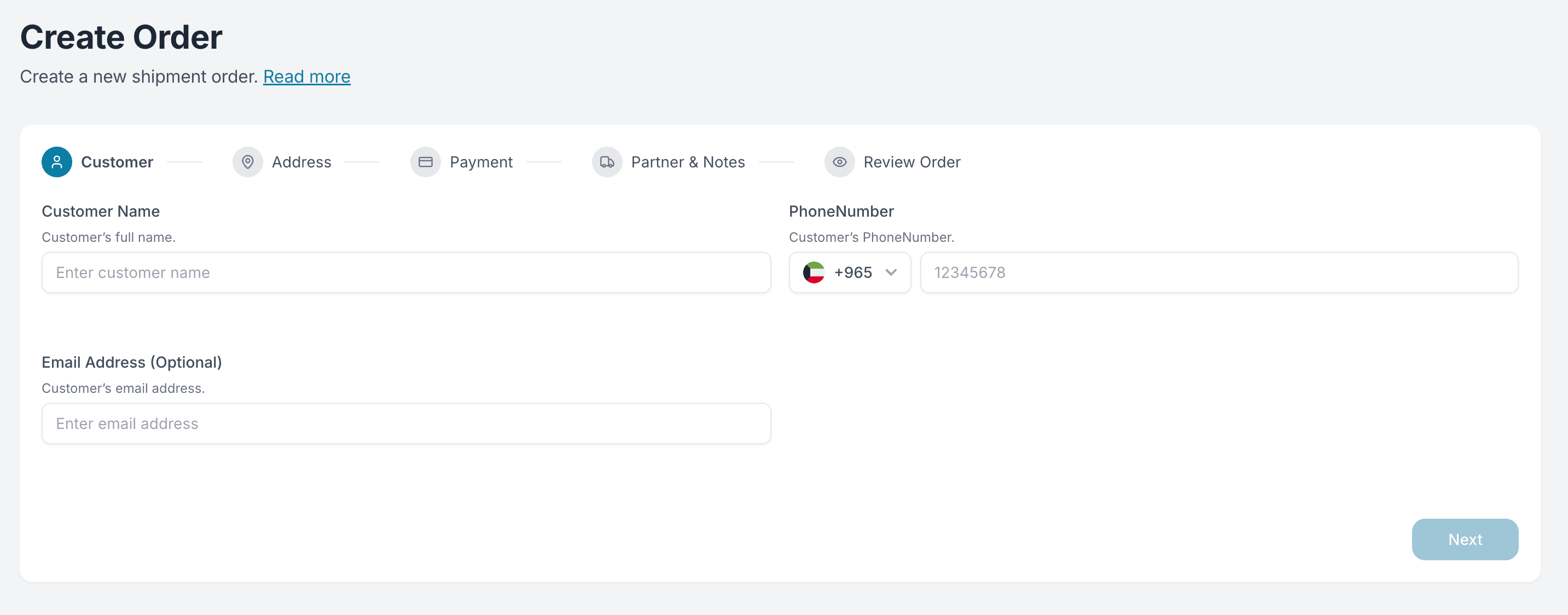
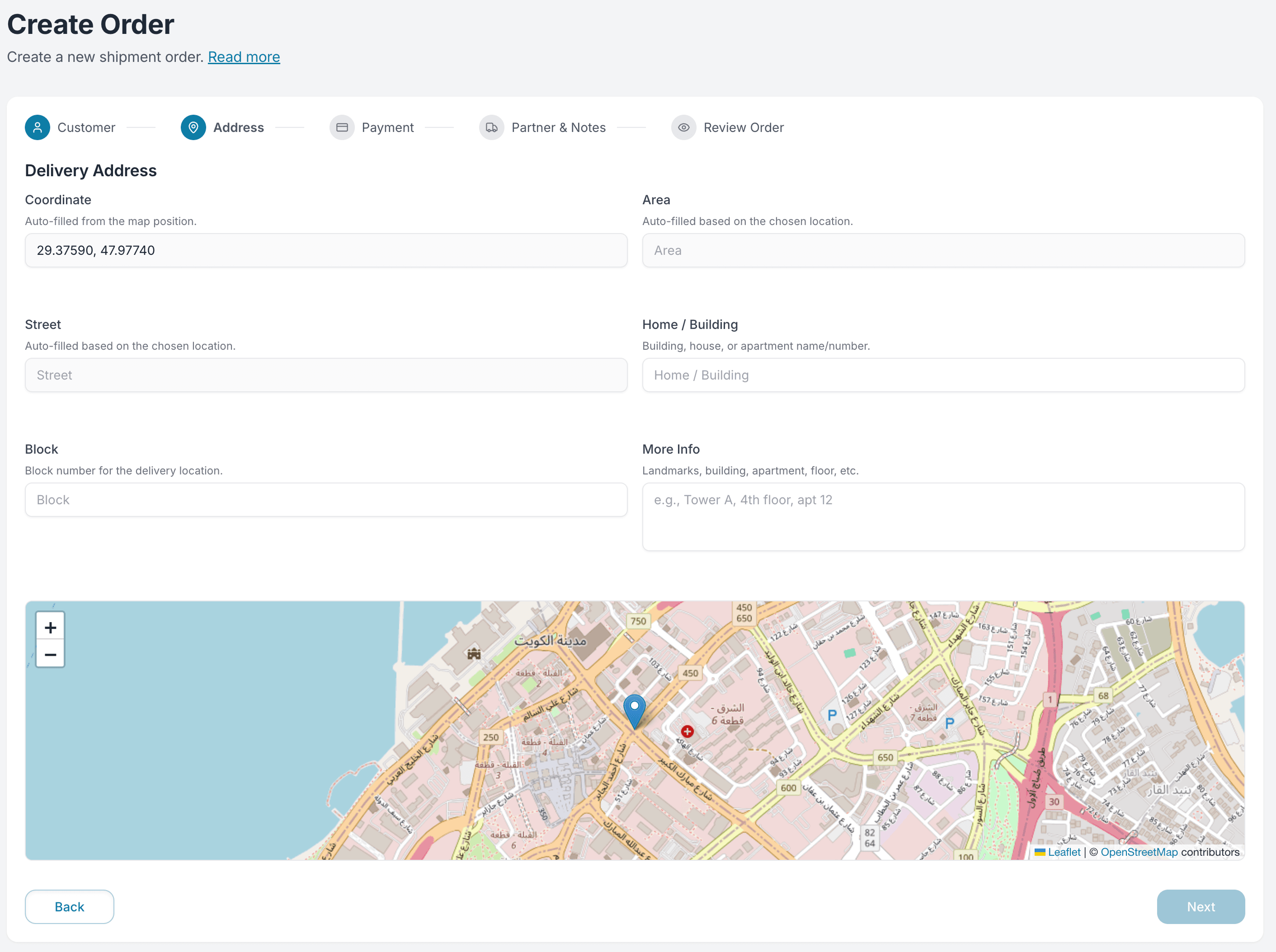
Step 2 — Delivery Address
Choose the delivery location from the map.
- Area and Street are auto-filled based on the pin and cannot be edited manually.
- You must manually fill in the following:
- Block
- Home / Building
- More Info (e.g., floor, apartment number, landmarks)
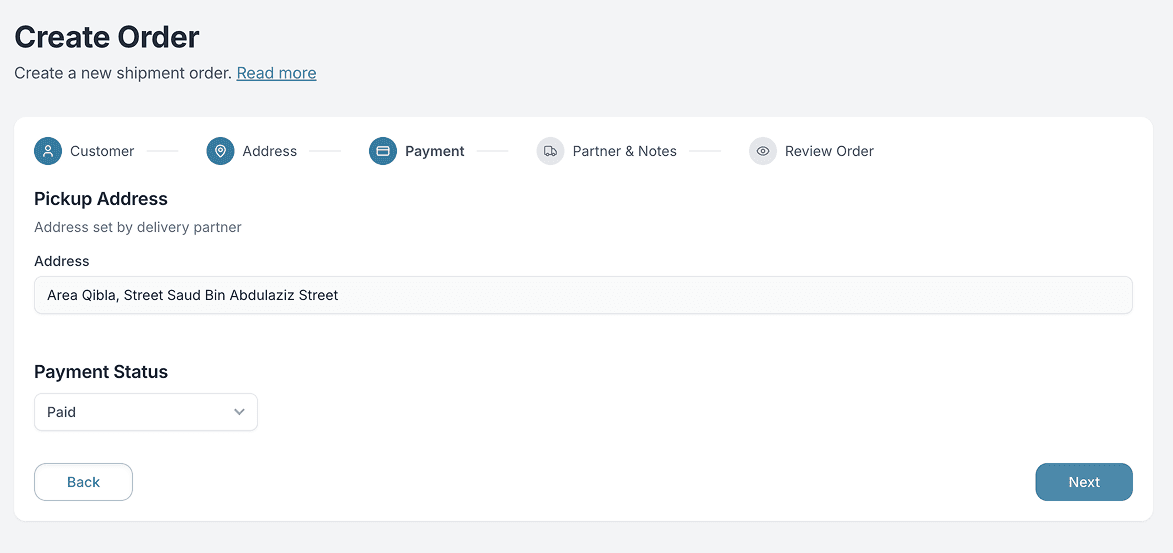
The Pickup Address is automatically set by your delivery provider and cannot be changed.
Step 3 — Payment
Define how the payment is handled:
- Payment Status: Choose whether the order is Cash on Delivery (COD) or Paid.
- COD Amount: If COD is selected, specify the amount to collect from the customer (in KWD).
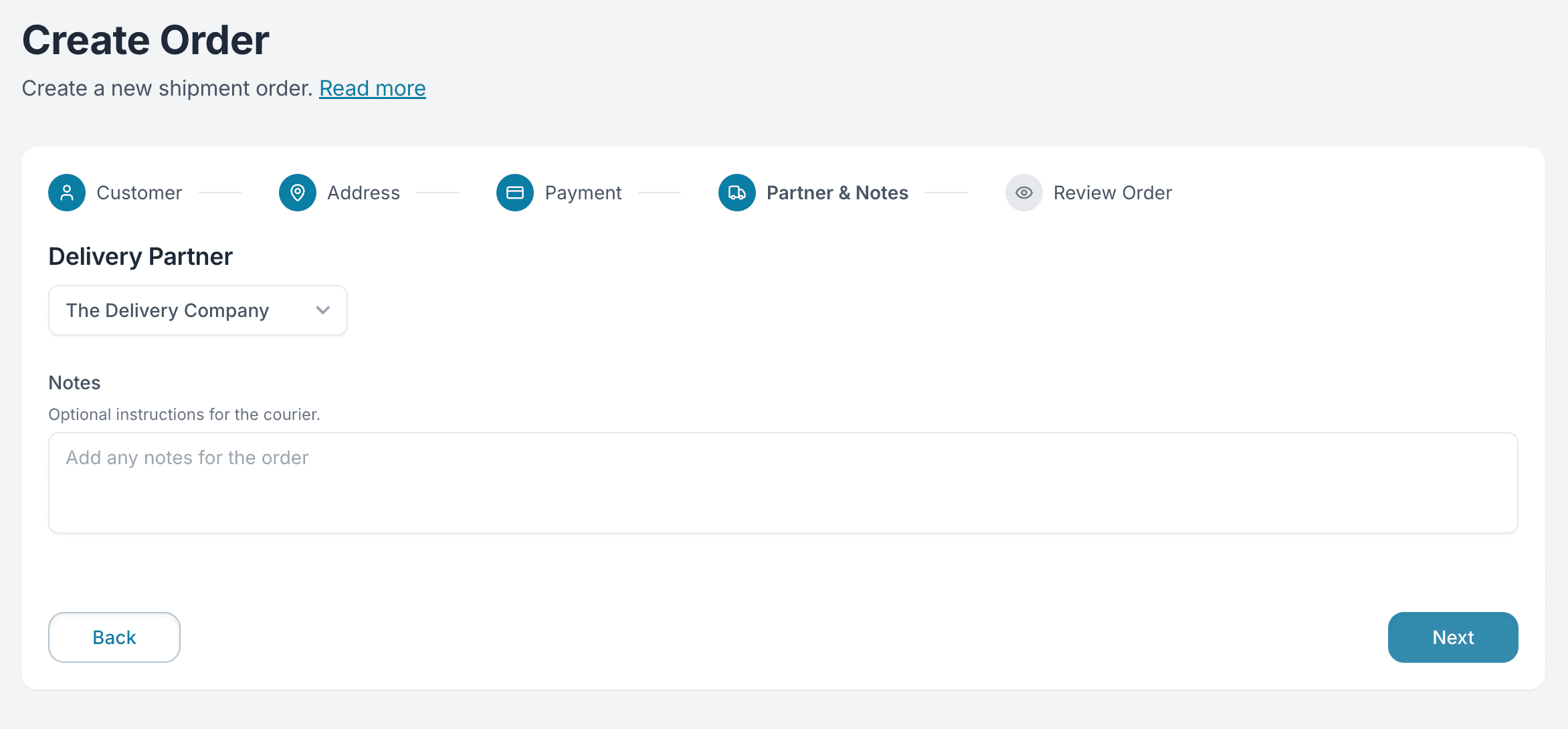
Step 4 — Partner & Notes
- If your account is connected to multiple delivery providers, select which partner should fulfill this order.
- Optionally, add any notes or special instructions for the courier.
Step 5 — Review Order
Before submitting, review the following:
- Customer and contact information
- Delivery address and coordinates
- Payment method and COD amount
- Delivery partner
- Any optional notes
Once confirmed, submit the request. The new shipment will appear in your Shipments list with a unique ID and status.