

Destination: Details
Each destination has its own control panel where you can simulate delivery flows, view linked sources, and manage settings.
After selecting a destination from the Connections list, you’ll be redirected to its detail page. This interface is divided into multiple tabs: Overview, Shipment, and Settings.
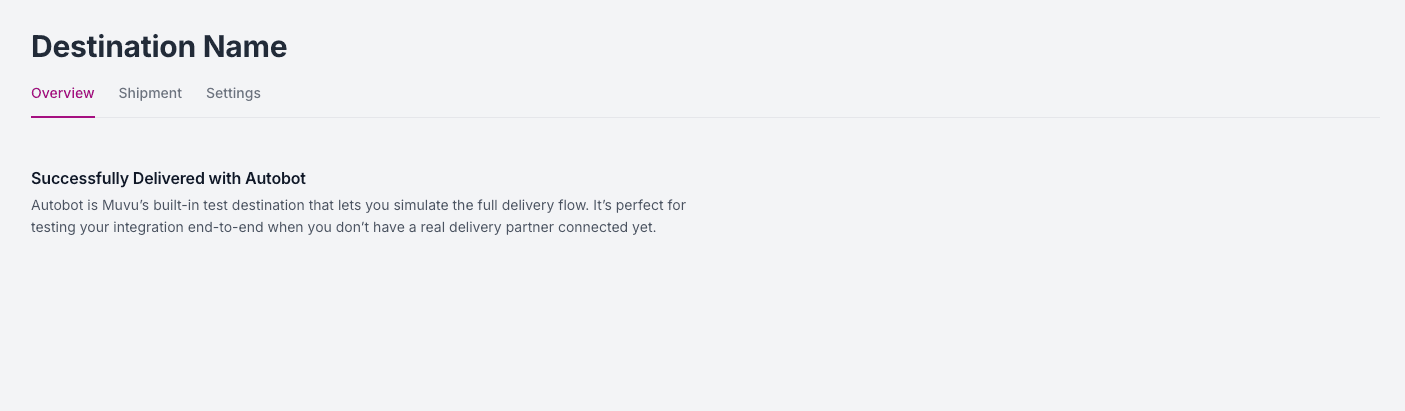
Overview
The Overview tab offers a description of the destination's function and purpose.
Shipment
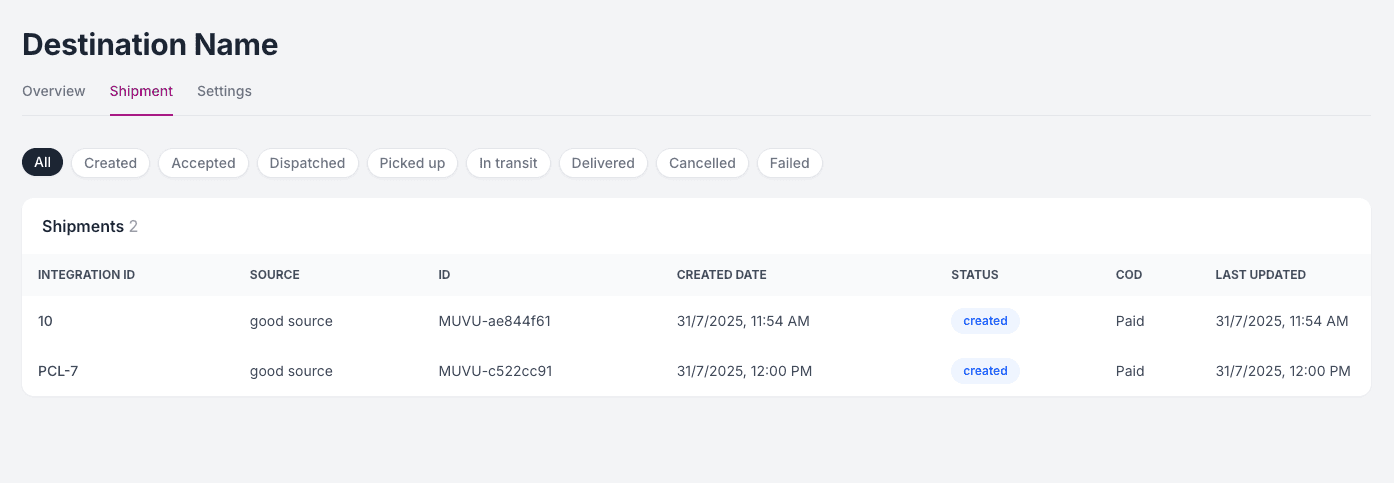
The Shipment tab lists all shipments routed through this destination.
- Filter by status:
Created,Accepted,Dispatched,Picked Up,In Transit,Delivered,Cancelled,Failed - Table columns include:
Integration ID,Source,Order ID,Created Date,Status,COD,Last Updated
If there are no shipments yet, the table will display an empty state message.
Settings
The Settings tab allows you to configure how the destination behaves in your environment.
You can:
- Edit the Destination Name
- Select between Sandbox and Production environments
- Toggle the Integration Status
- Manage Linked Sources, which are the Sources sending orders to this destination
Depending on the delivery provider selected for this destination, additional configuration options may appear in the Settings tab.
These options are specific to the provider’s requirements and capabilities.
Each linked source shows its current connection state (Connected/Disconnected).