

Source: How to Start
The Sources page lets you connect your store or system to Muvx, view existing sources, and manage their settings and shipments.
This manual is specifically designed for Merchants using the Muvx platform.
While delivery providers are responsible for executing and completing shipments, Merchants create and manage the orders that flow into the system.
If you are looking for the Admin Panel Manual for Delivery Providers, please refer to this link:
Admin Panel Manual for Delivery Providers
Introduction
In Muvx, a Source represents your online store, marketplace, restaurant app, or custom backend system that you'd like to connect to our platform. Once connected, your orders will seamlessly flow into Muvx, ready to be dispatched to selected delivery providers.
Sources Page Overview
On the Sources page, you can manage and view all integrated sources at a glance. Easily control multiple online stores or restaurant systems from one organized interface.
List of Sources
The Sources page shows all of your connected sales channels—whether they are e-commerce platforms, marketplaces, or custom backend systems.
There are two possible states for this page:
1. When No Sources Are Connected
If you haven’t added any sources yet, the page will show a clear call-to-action prompting you to connect your first source. This is your starting point to begin sending orders through Muvx.
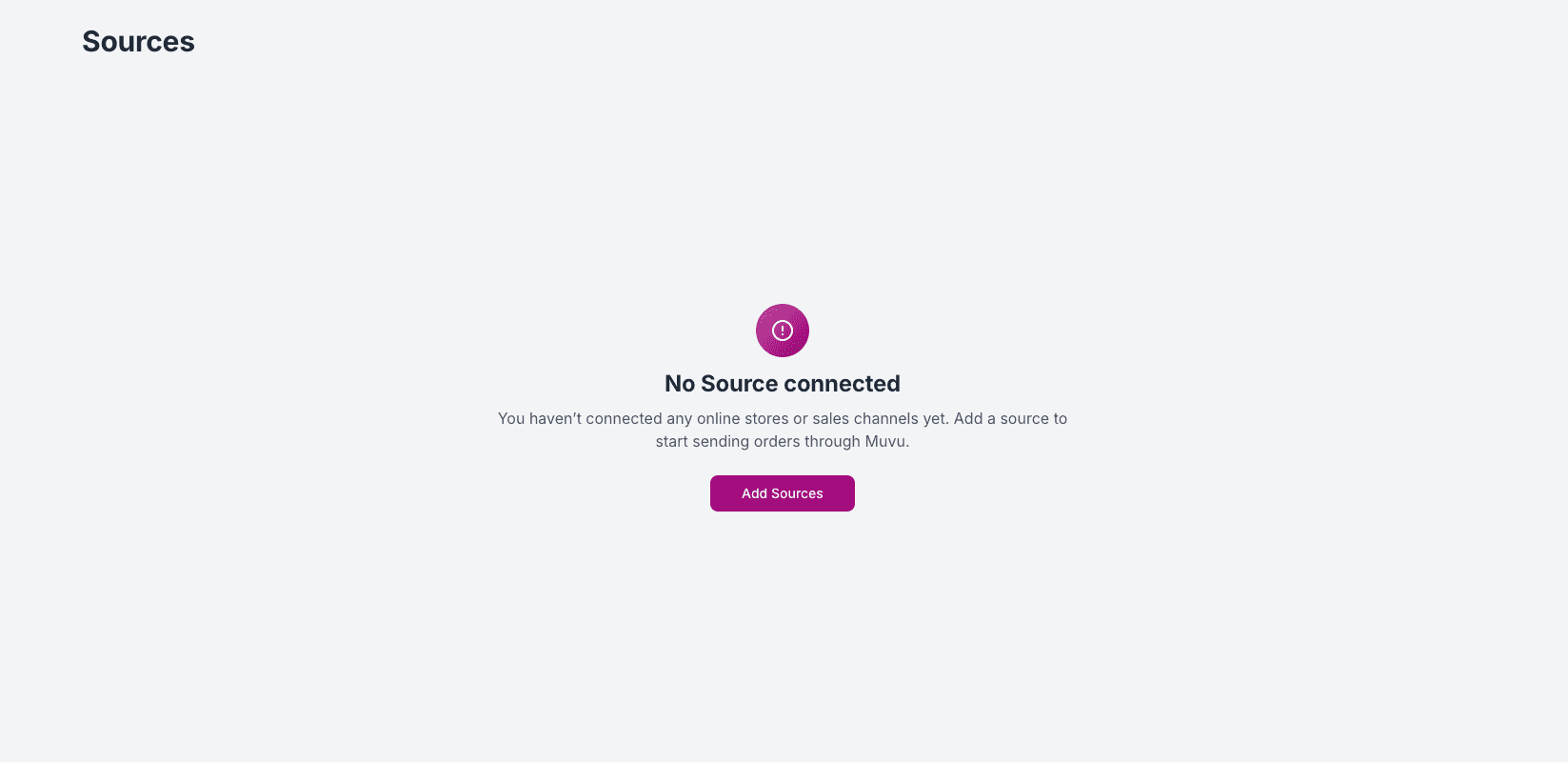
Click “Add Sources” to begin integrating your online store or backend system with Muvx.
2. When Sources Are Connected
If one or more sources have already been created, you’ll see a list with key details about each one:

Each row in the list includes:
- Source Name: The internal label you've assigned to this source.
- Category: The type of integration used (e.g.,
customApi,Shopify, etc.). - Destination(s): Connected delivery providers (if any).
- Status: Shows whether the source is currently
Pending,Connected, orDisabled. - Total Shipments: The number of orders sent through this source.
- Action: Options to edit or manage the source.
You can add more sources at any time by clicking the “Add Sources” button located at the top right of the page.
You can manage as many sources as you need—each source can represent a different brand, system, or sales channel under your company.
Add a Source
Integrating a new source in Muvx is a simple two-step process, designed to support various platforms and backend systems.
Step 1: Choose Your Integration Type
Easily integrate a new source by selecting from available options:
-
Custom API:
Directly integrate using Muvx’s REST API for full flexibility. -
Platform Plugins:
Shopify, Magento, WooCommerce, and other e-commerce platforms. -
Server SDKs:
Use SDKs for PHP, Java, and more to connect your backend system quickly.

Step 2: Provide Source Information
After selecting an integration type, you'll be prompted to enter the required configuration details.
For Custom API, the setup is straightforward:
- Source Name – an internal label to identify this source instance.
- Webhook URL – the endpoint on your system that will receive shipment status updates.
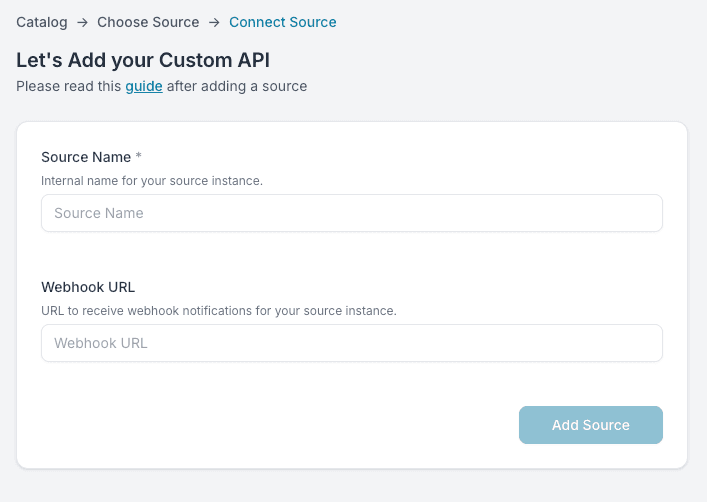
For other integrations such as Shopify or Java SDK, additional fields may appear — like API tokens, domain names, or SDK credentials — depending on the platform requirements.
Once submitted, the new source will appear in your Sources list, ready to be linked to one or more destinations.
You can manage multiple sources across various platforms under a single company workspace in Muvx.