Settings
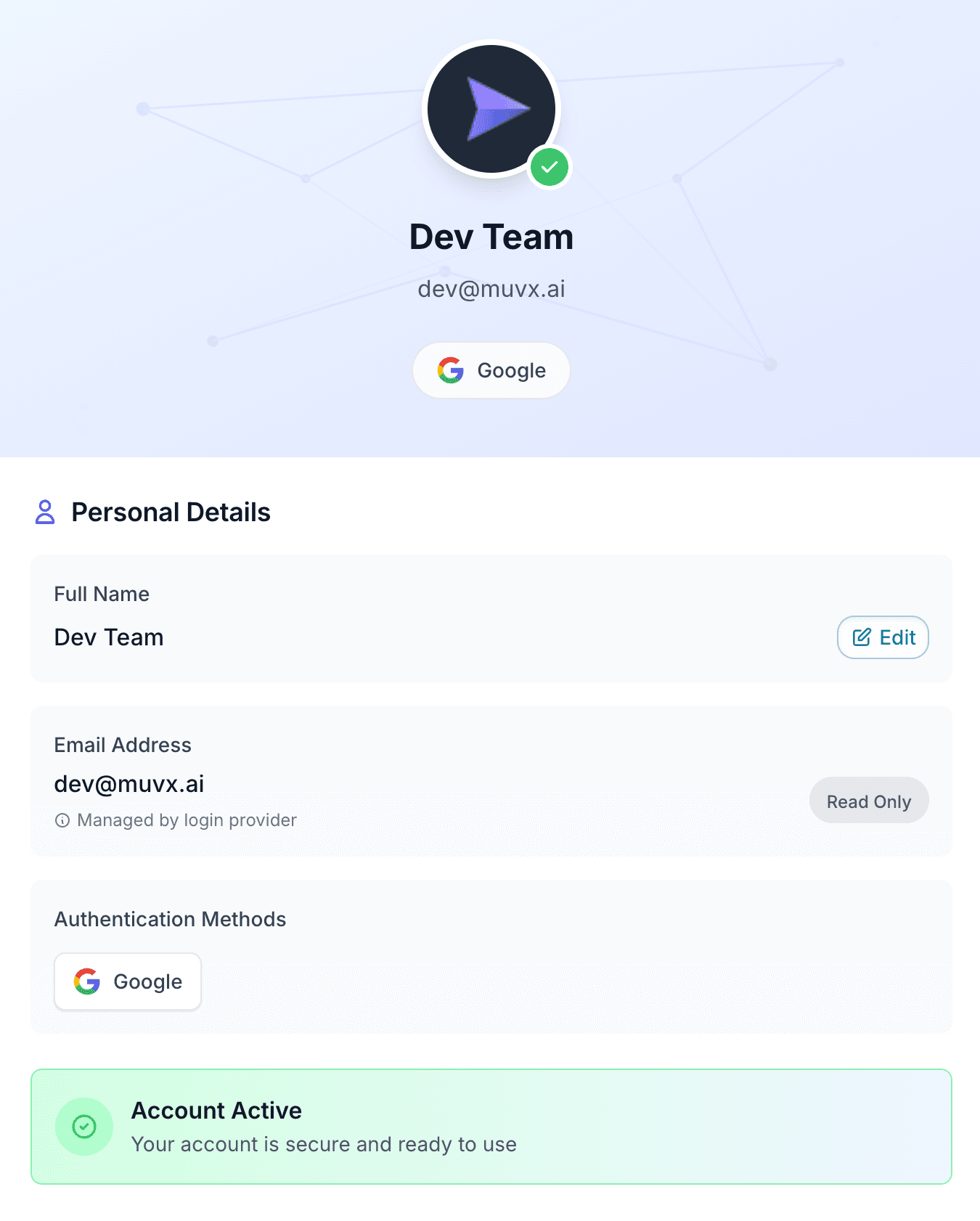
The Account Settings page allows users to manage their personal details, authentication methods, security settings, and linked companies.
Personal Details
The Personal Details section shows the main profile information for the user’s Muvx account. It provides a quick view of who the account belongs to, how it’s identified in the system, and the current login method and account status.
Fields in this section:
- Full Name – The display name used across the platform.
- Email Address – The primary email for login and notifications (read-only).
- Authentication Methods – The login method(s) currently enabled.
- Account Status – Indicates if the account is active and in good standing.
Only the Full Name can be edited in this section; all other fields are fixed.
Authentication & Security
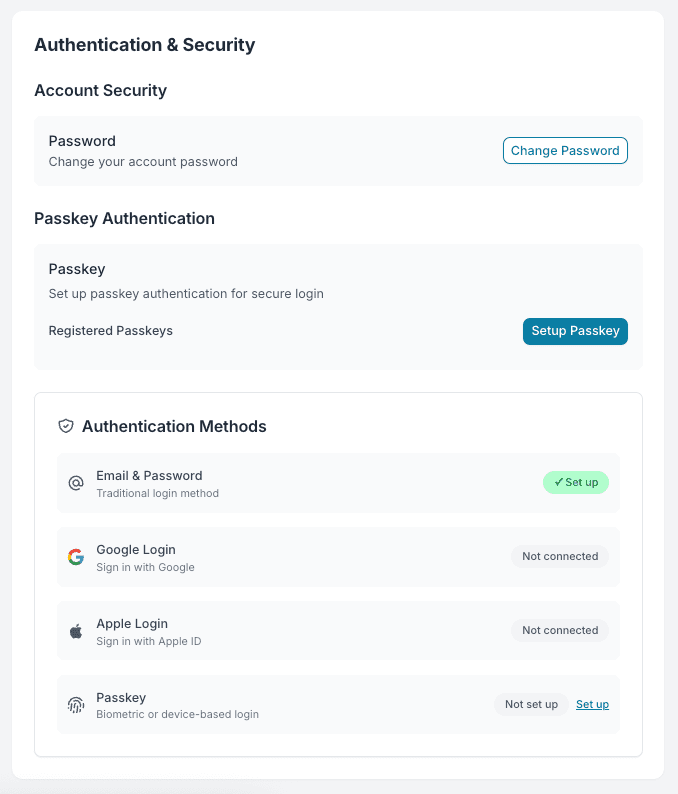
The Authentication & Security section allows users to manage how they access their Muvx account and enhance login security. From here, users can set or change their account password, configure Passkey authentication, and view the status of all available login methods.
Features in this section:
- Password – Set up or modify account password at any time for security purposes.
- Passkey Authentication – Set up or modify Passkey login, which enables secure access using biometric or device-based verification. Registered Passkeys are listed here once configured.
- Authentication Methods Overview – Displays all supported login methods and whether each one is currently active, not connected, or not set up.
Using multiple authentication methods is recommended for convenience and as a backup in case one method becomes unavailable.
Your Companies
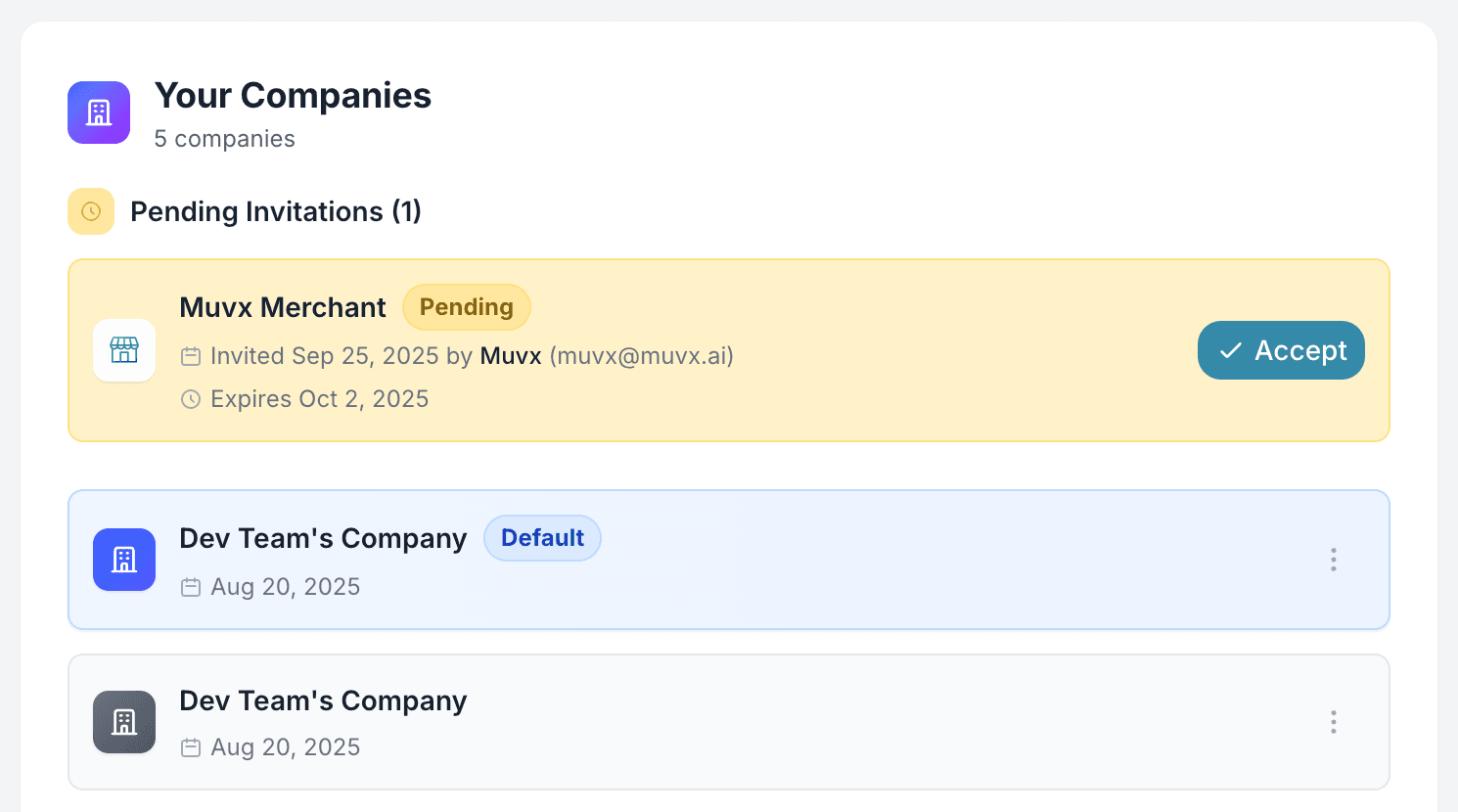
The Your Companies section displays all companies linked to the user’s account.
Every account is connected to at least one default company, which determines the active workspace in Muvx. If more than one company is linked, users can switch between them at any time — either from this section or directly from the sidebar.
If you have been invited to join another company, pending invitations will appear at the top of this section. Invitations can be accepted directly from here or via the email sent to you.
Company information may also be shared with delivery providers when required, allowing them to view your company profile and potentially request collaboration.
From each company card, you can open the Company Settings page by selecting the action menu and choosing Settings.
Possible states in this section:
- Default Company – Indicates your main workspace.
- Pending Invitations – Shows any company invites awaiting your response.
- Multiple Companies – Allows switching between linked companies from here or the sidebar.
Company Settings
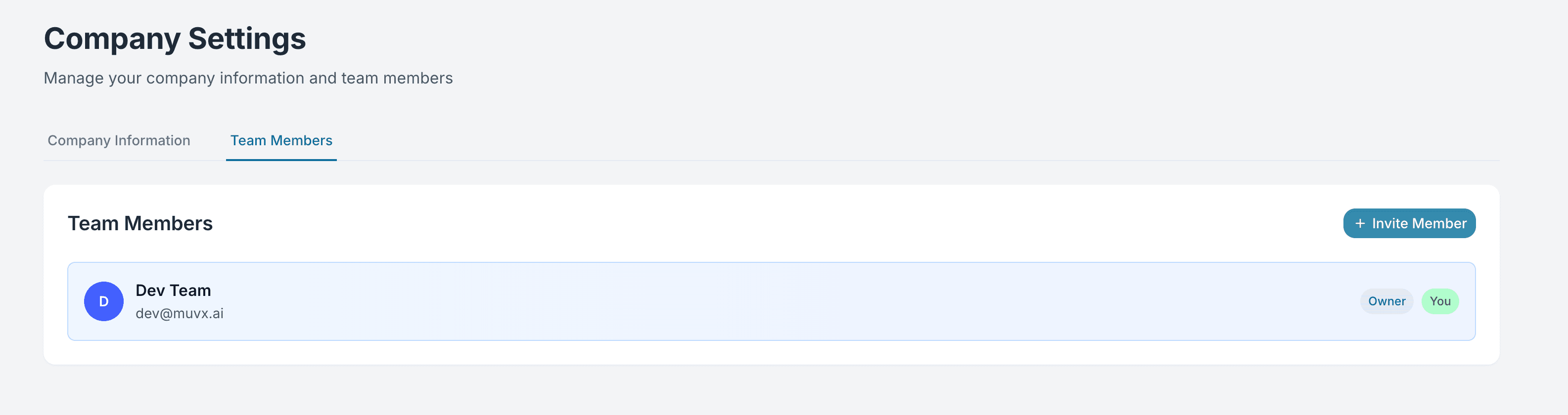
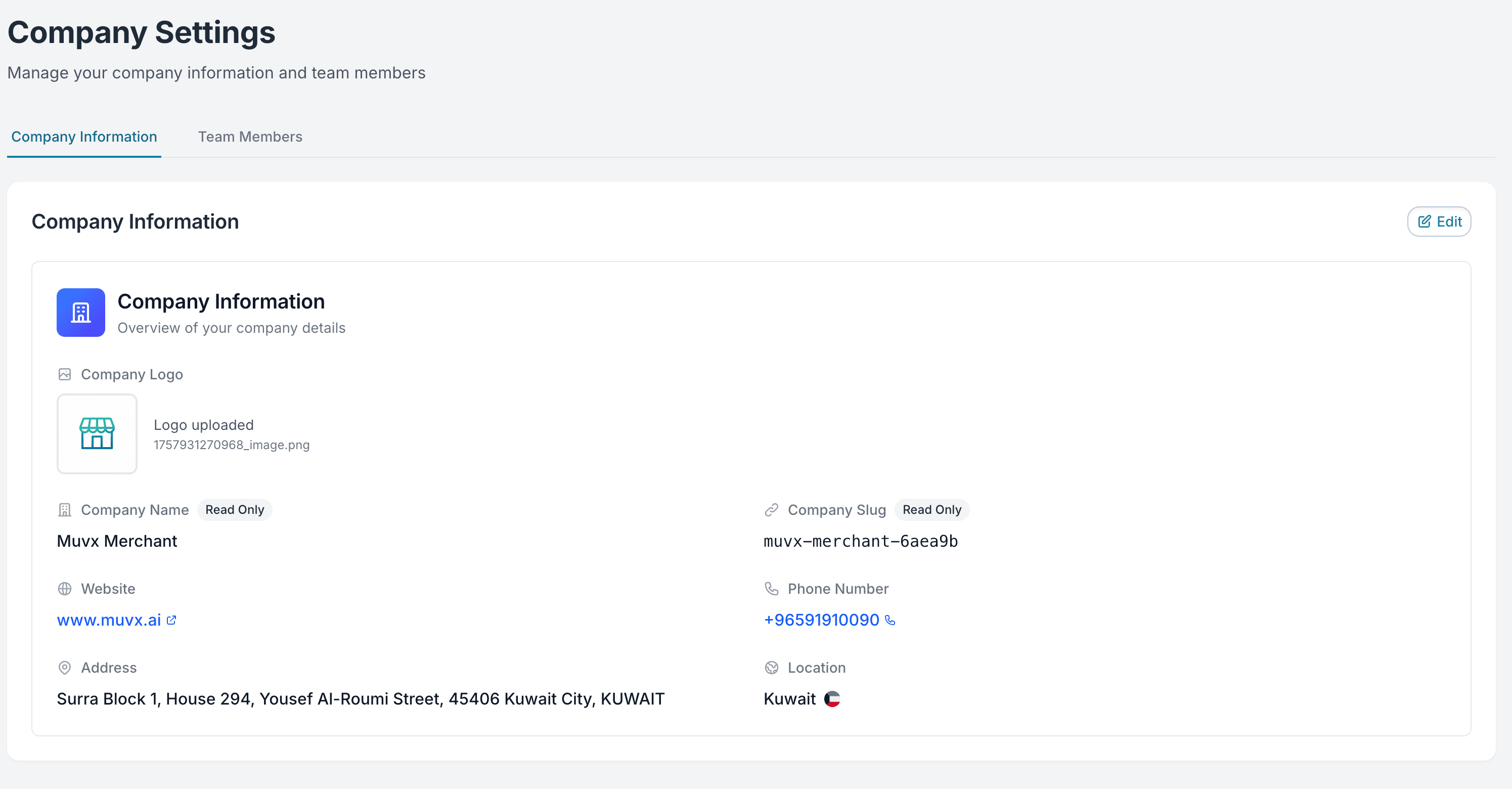
The Company Settings page is accessed by selecting the Settings action from any company in the Your Companies section.
It contains two tabs:
1. Company Information
Displays the main details of the company, including:
- Company Logo – Upload or replace the logo. It is recommended to upload a square image for best display.
- Company Name (read-only)
- Company Slug (read-only)
- Website
- Phone Number
- Address
- Location
Clicking the Edit button allows updating all editable fields and uploading a company logo.
For best results, upload a square company logo to ensure correct display in all parts of the Muvx platform.
2. Team Members
Shows the list of users who have access to the company, along with their role (e.g., Owner, Viewer) and status (Active, Pending Invitation).
From here you can:
- Invite new members by email.
- Cancel pending invitations.
- See your own role and status in the company.